Open a matter and add contacts
Create contacts and clients, open a matter, add parties and move it through its stages.
Add a contact
Open Contacts and select New contact. Choose Person or Organization, enter the name, phone and email, and select Create. On the contact's page, select Make client to be able to open matters for them.
Create a matter
Open Matters and select New matter. Pick an Existing client or type a new client's name, enter the Matter name and Billing arrangement (and the flat fee if there is one), then select Create matter.
Run the conflict check before opening
New matters start in intake. The matter page shows Conflict check needed until a check is resolved. Select Run conflict check to do it from the matter.
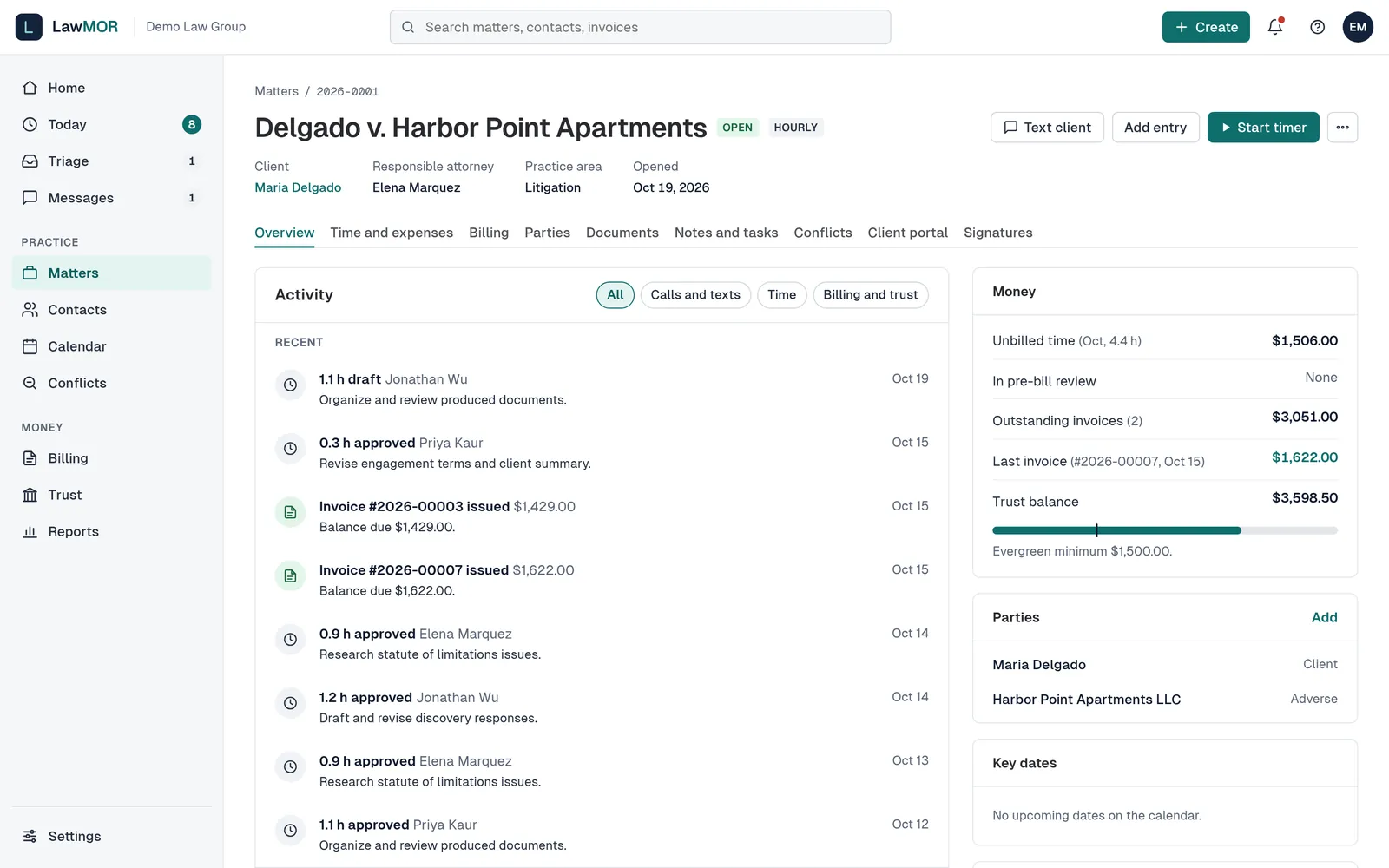
A matter page. Add parties and documents
On the Parties tab, enter the Name, Role and Kind and select Add party. On the Documents tab, add files (PDF, Word, Excel, JPEG, PNG or text, up to 25 MB) and tick Share with the client in the portal if the client should see them.
Change the matter's status
Use the three-dot More actions menu next to Start timer: Open matter, Mark pending or Close matter. If the matter still holds trust money, LawMOR asks you to confirm before closing.
Did this not answer your question? Contact support and we will reply within one business day.