Invite your team and set roles
Add people to the firm, choose what each role can do, and remove access.
Open Team
Go to Settings, then Team. Everyone can see the list of members; only owners can invite people, change roles or remove someone. Staff seats are free; fee-earners are the people who bill time.
Send an invitation
Select Invite someone. Enter Name and Email, choose a Role, and tick Bills time (fee-earner) if they record billable time. Select Send invitation. They appear in the list with an invited status until they sign in.
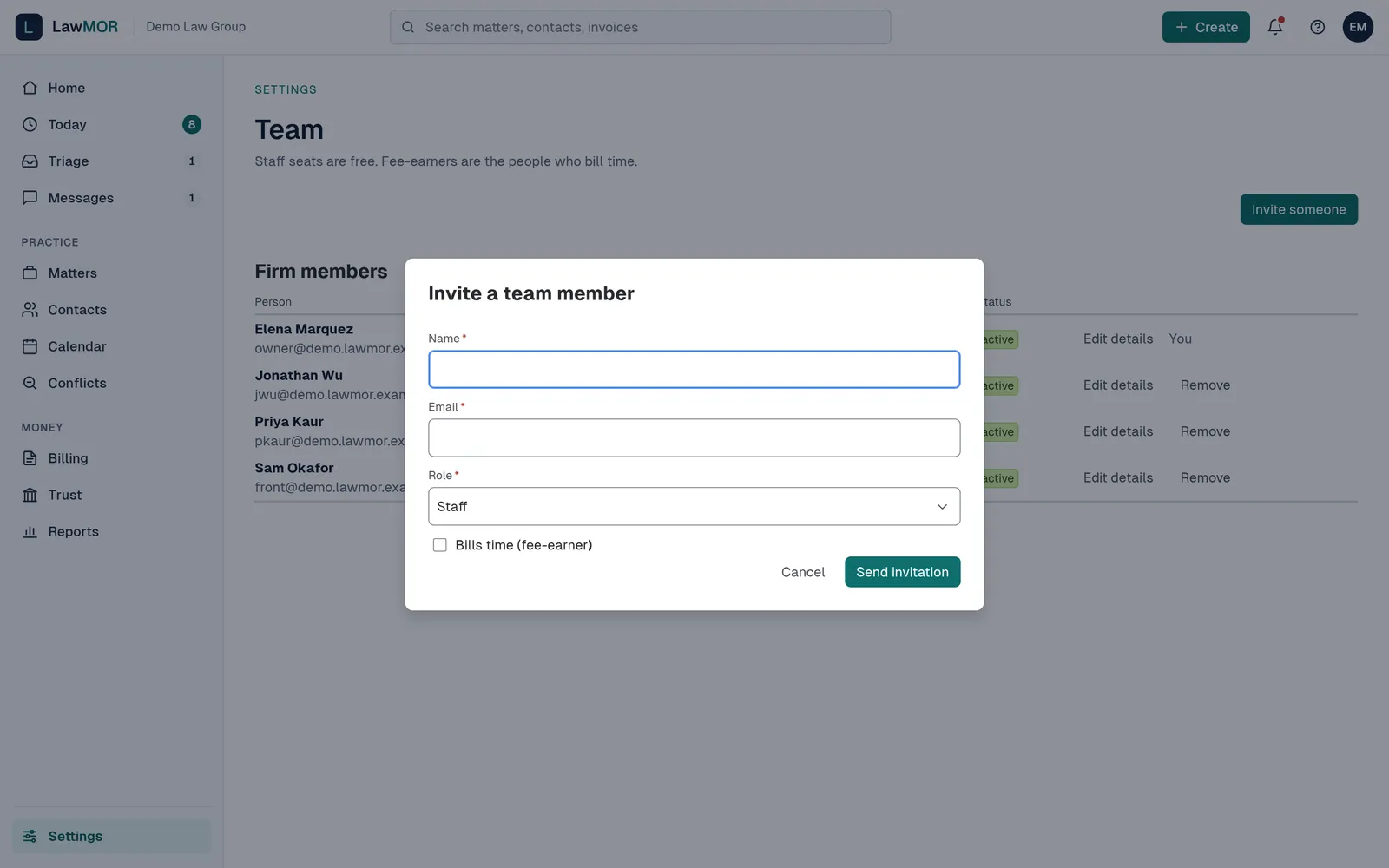
Invite a team member. Pick the right role
Owner can do everything, including settings, trust setup, exports and the audit log. Attorney can approve pre-bills, issue invoices and resolve conflict checks. Paralegal can work in Billing and Trust but cannot approve pre-bills. Staff can work with calls, texts, matters and contacts, but not Billing or Trust.
Add billing and bar details
Select Edit details next to a person. Turn Bills time (fee-earner) on or off, add a Timekeeper ID and classification for LEDES invoices, and for attorneys enter the Bar number and Bar state. Select Save details. An attorney needs a bar number before they can be the designated licensee on a trust account.
Change a role or remove someone
Pick a new role in the Role column to change it straight away. To take someone out of the firm, select Remove, then Remove again. They lose access immediately; their time entries and history stay with the firm.
Did this not answer your question? Contact support and we will reply within one business day.