Set up your firm profile, rates and email
Enter the firm's details, create the standard rate card and choose how email is sent.
Fill in the firm profile
Open Settings from the left menu and select Firm profile. Enter Name shown to clients, Legal name, Main phone, Website and Mailing address, then select Save. The mailing address is printed in the footer of announcements to clients, as US law requires on bulk email.
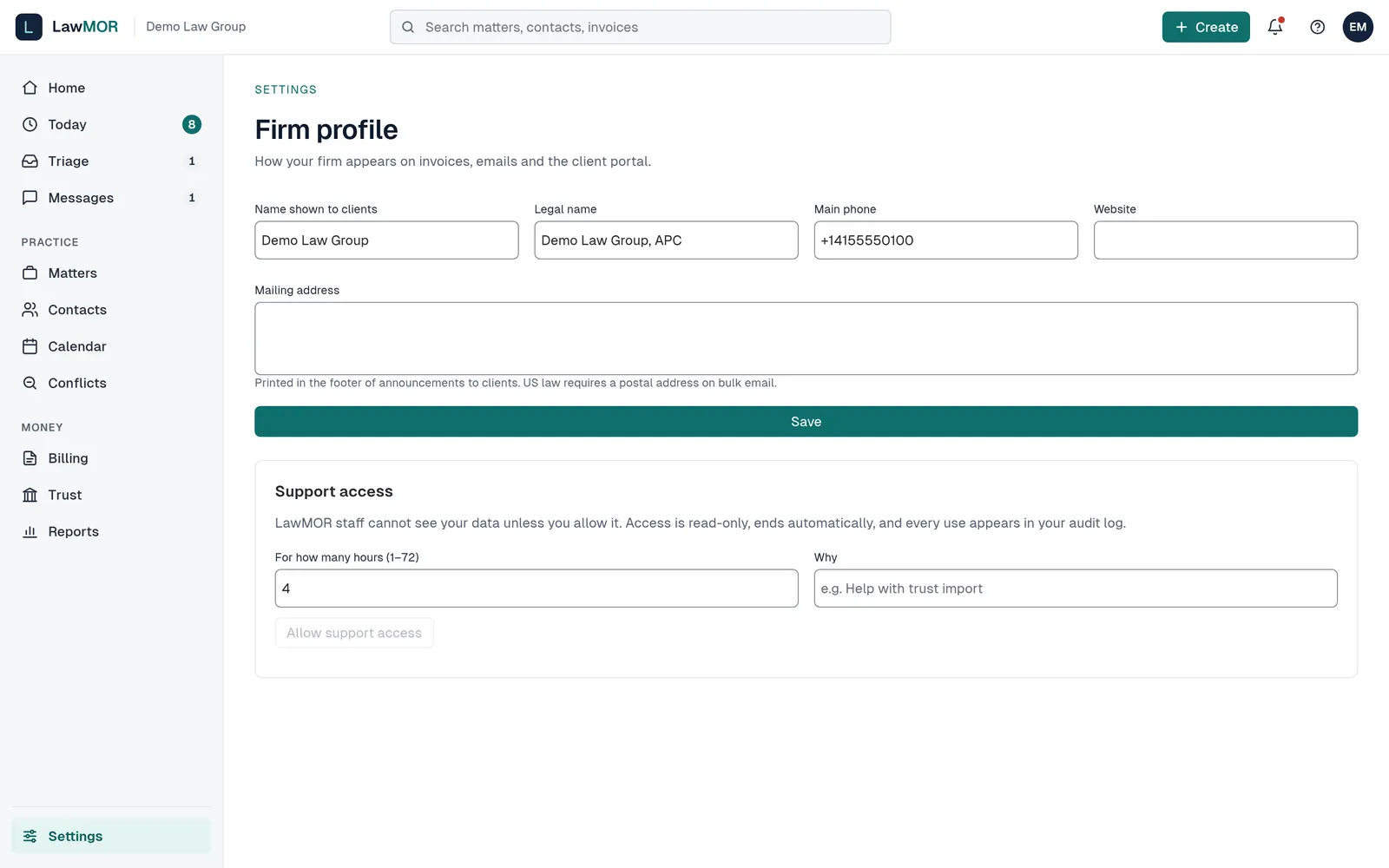
Settings, Firm profile. Create the standard rate card
Go to Settings, then Rates. If the firm has no rate card yet, select Create the firm's standard rate card. Time can be recorded without one, but approving time needs an hourly rate.
Add hourly rates
On the rate card, choose a Timekeeper (leave it blank for everyone else), enter the Hourly rate and the Effective from date, then select Add rate. Only team members marked as billing time appear in the list.
Choose how email is sent
Go to Settings, then Email. On the Sending tab, pick LawMOR's mail service with your firm's name as the sender, or your own mail server. Set the Sender name and Replies go to address, select Save, then Send me a test message.
Allow support access only when you need it
LawMOR staff cannot see your data unless you allow it. Under Support access on the Firm profile page, enter how many hours (1 to 72) and why, then select Allow support access. Access is read-only, ends on its own and can be ended early with Revoke now.
Did this not answer your question? Contact support and we will reply within one business day.