Set up firm numbers, recording and texting
Add the firm's numbers, choose who each one rings, and register for business texting.
Open Phone and texting
Go to Settings, then Phone and texting. The Numbers table lists every number already set up for the firm. If your firm's phone service is not set up yet, the table is empty; contact LawMOR support to get numbers.
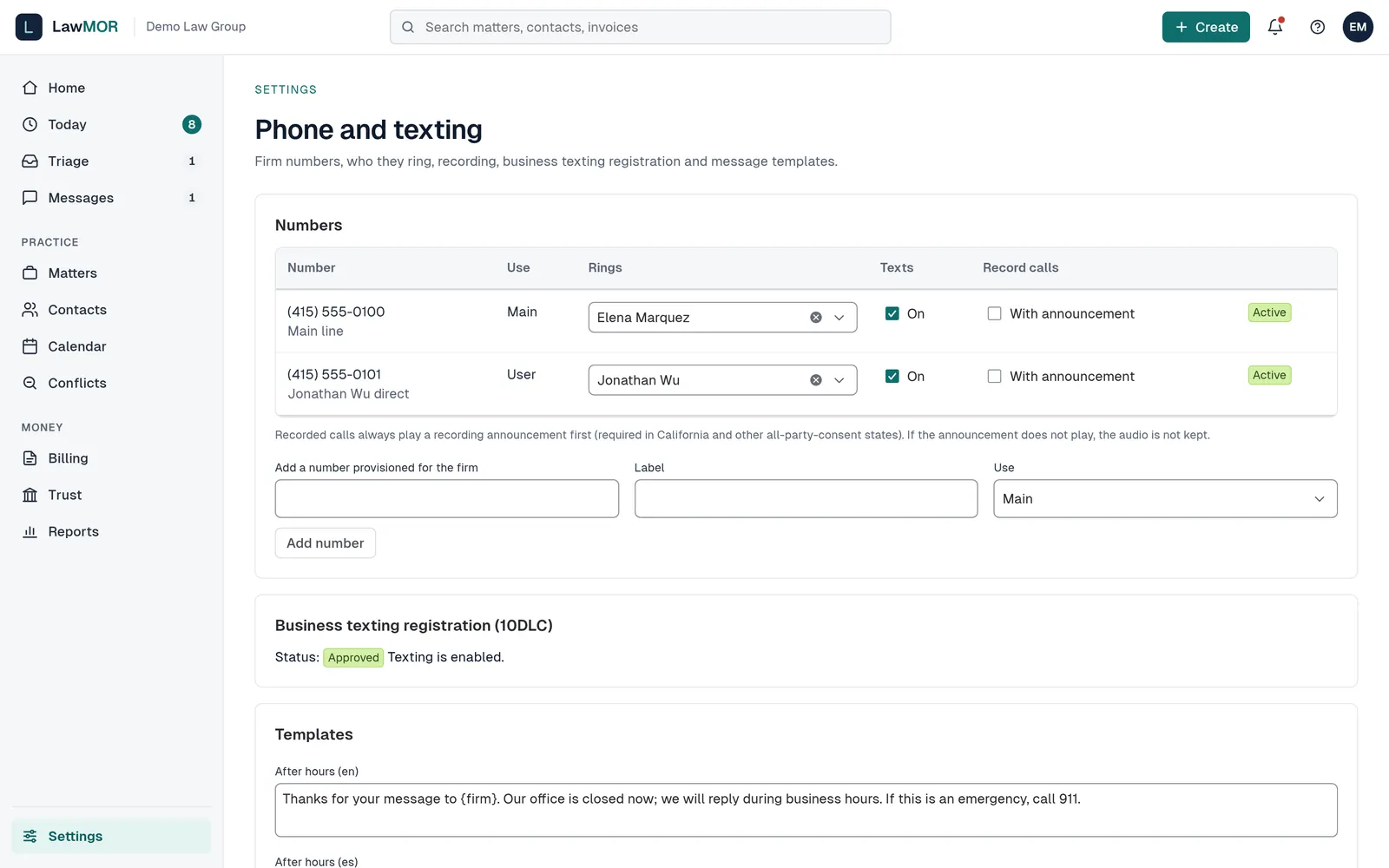
Settings, Phone and texting. Add a number
Under Add a number provisioned for the firm, enter the number, a Label, and its Use: Main, User, Matter, Receptionist or Fax. Select Add number. Only add numbers your firm's phone service has already provided.
Choose who it rings and what it does
In the Rings column, pick the person the number belongs to. Tick Texts On to allow texting from it. Tick Record calls With announcement to record calls.
Know how recording works
A recorded call always plays a recording announcement first, as California and other all-party-consent states require. If the announcement does not play, the audio is not kept.
Register for business texting (10DLC)
US carriers require every business that texts from local numbers to register. Fill in Legal business name, EIN, Business address, Website, Privacy policy URL, SMS terms URL, How clients agree to receive texts, and two or more sample messages. Select Submit registration. Texts from local numbers are held until carriers approve, which usually takes a few days to three weeks.
Adjust automatic text wording
Under Templates, edit the wording of the firm's standard texts. A Save button appears once you change one.
Did this not answer your question? Contact support and we will reply within one business day.