Text clients from Messages
Start and answer text conversations from your firm numbers, file them to matters, and text a payment link.
Open Messages
Select Messages in the left menu. Conversations with unread texts show a count. Each day's texts with a client become one private draft for you to review on Today.
Start a new conversation
Select New message. Pick the From number, enter the To number, choose a Matter if you know it, write the Message and select Send. Only firm numbers with texting turned on are offered.
Reply in a conversation
Type in the box at the bottom and press Enter to send; Shift and Enter adds a new line. Select Templates to start from a saved text. Under each group of messages you can see who sent it and whether it was delivered.
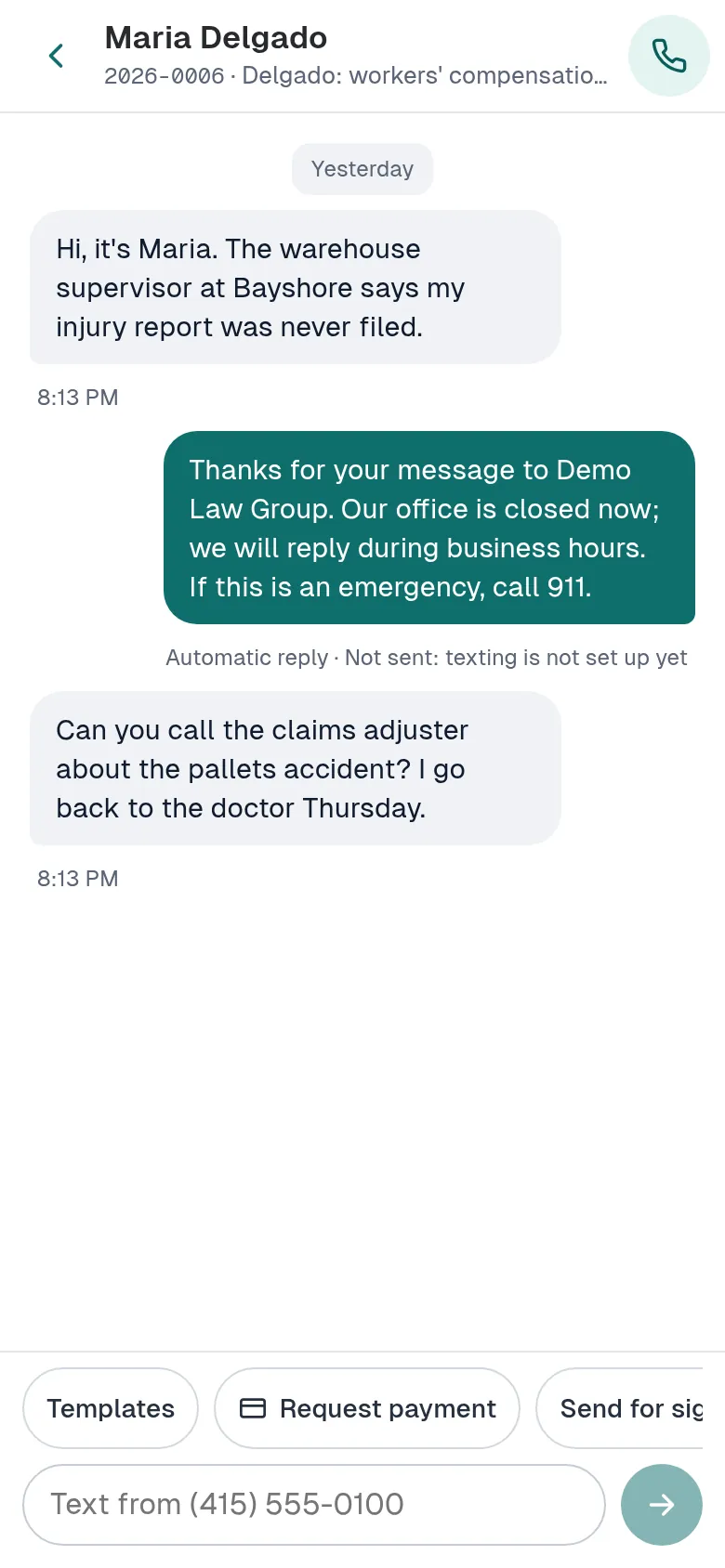
A conversation on a phone. File the conversation to a matter
If the conversation has no matter yet, choose one under File this conversation to a matter. A strip near the top shows today's texts drafted as time; select Review to open Today.
Text a payment link
When the conversation is filed to a client's matter, select Request payment. Enter the Amount (USD), choose whether it pays into the Operating account or the Trust account, and select Text the payment link. This needs your firm's online payments to be set up.
Did this not answer your question? Contact support and we will reply within one business day.