How calls and texts become draft time on Today
Review the private drafts LawMOR writes from calls and texts on your firm lines, and file them to the right matter.
Open Today
Select Today in the left menu or the tab bar. Each call or text on your LawMOR lines appears on a timeline as a draft. Drafts stay private to you until you approve them, and nothing reaches a pre-bill until you do.
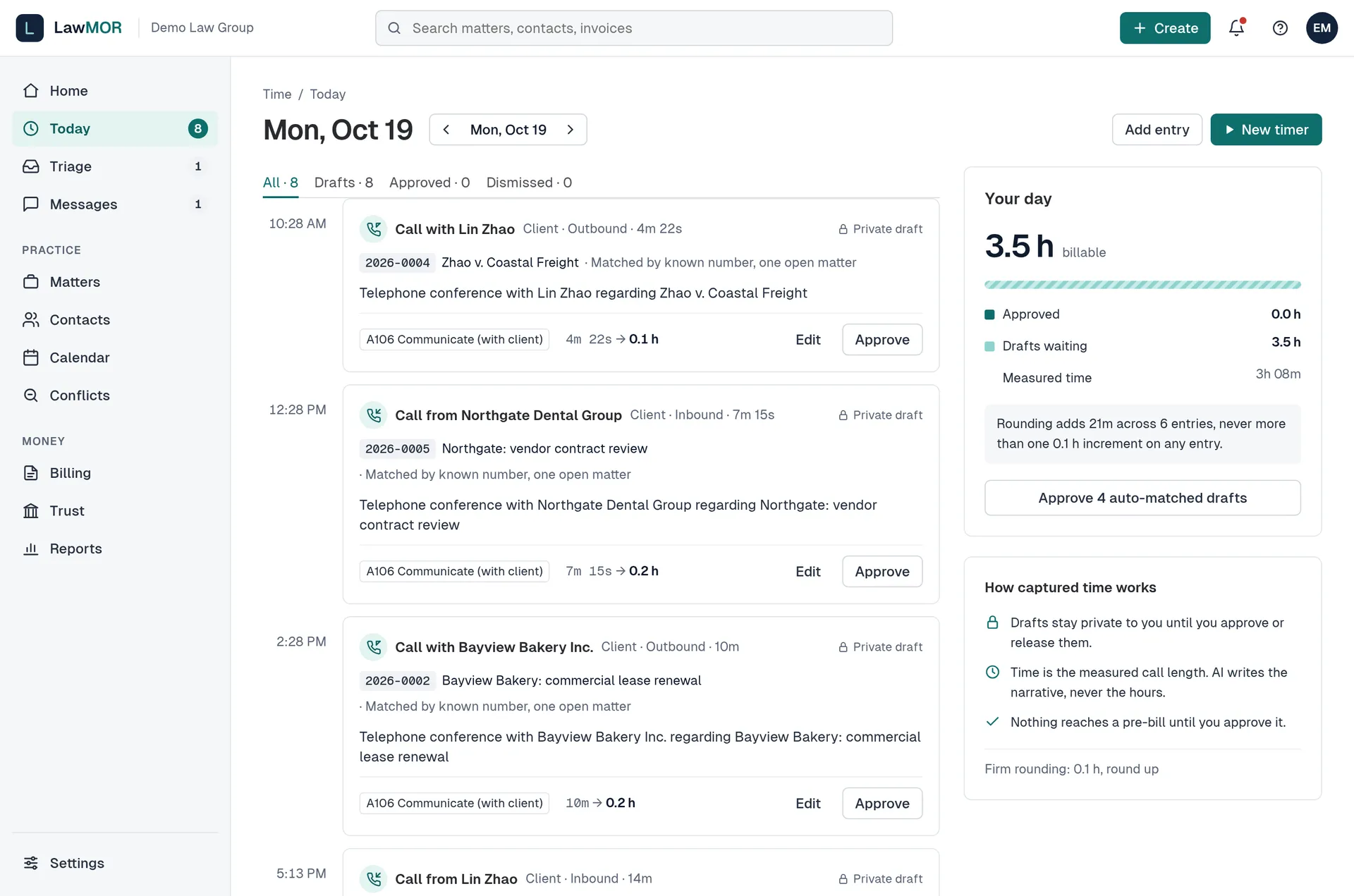
Today on a desktop. Check the time and narrative
Time on a call draft is the measured call length, rounded to the firm's increment. AI writes the narrative, never the hours. A day's texts with one client become one draft marked Estimate, based on the number of messages.
Pick the matter when LawMOR is not sure
A draft marked Which matter? lists the caller's open matters with how sure LawMOR is about each. Choose one and select File to with that matter number. If none fits, select Neither: send to triage.
Approve or edit
Select Approve on a draft that is right. For texts the button reads Confirm time and approve. Select Edit to change the narrative, hours or UTBMS codes, or Transcript to read the call. Card, Social Security and account numbers are removed before a transcript is stored.
Approve many at once
When several drafts were matched automatically, the Your day panel shows a button such as Approve 3 auto-matched drafts. Use it after you have read them.
Use Today on your phone
On a phone, Today lists your drafts with the ones that need a matter first. Select Choose matter to open Confirm matter, pick the matter and select File to, or Neither: send to triage.
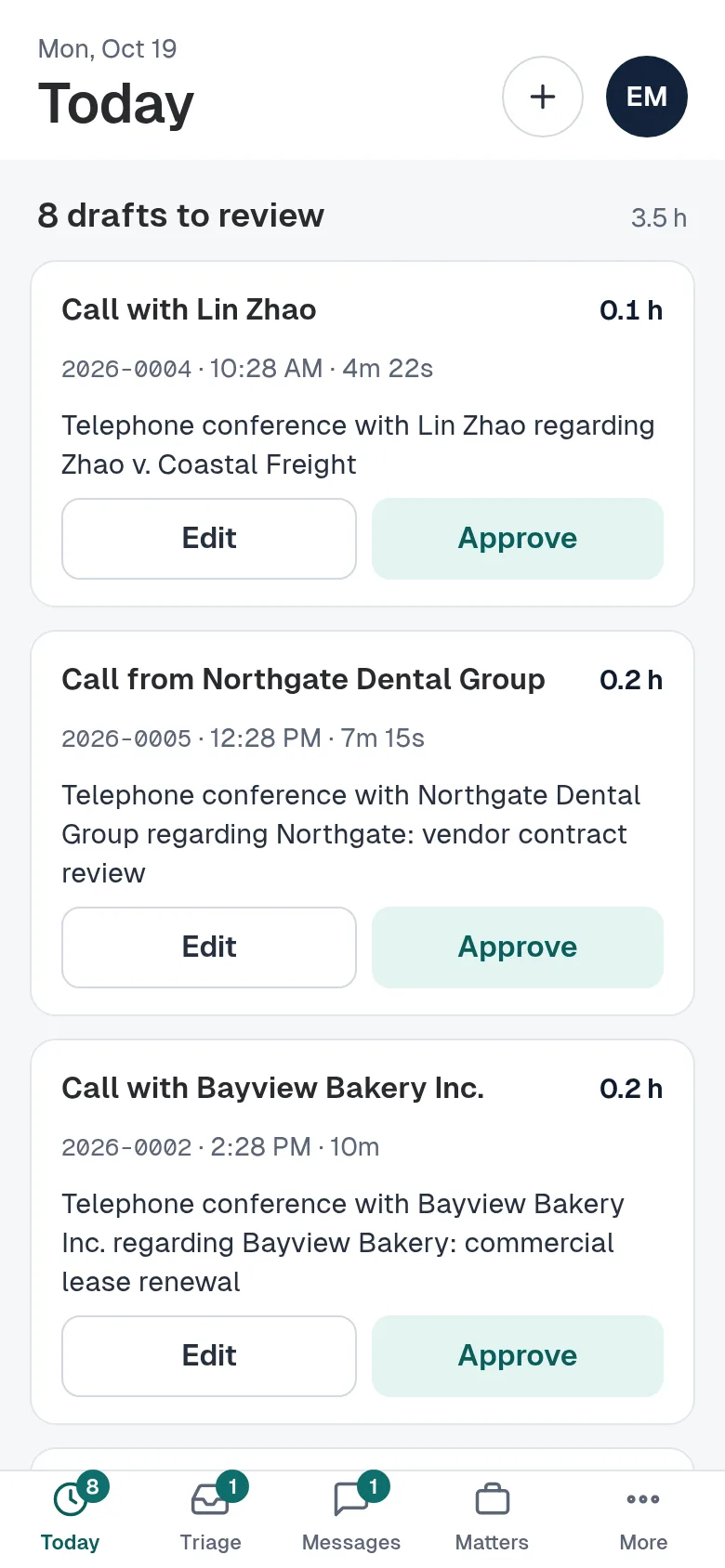
Today on a phone.
Did this not answer your question? Contact support and we will reply within one business day.