Track time with timers and manual entries
Start and stop timers, add time by hand, and edit, approve or dismiss your drafts.
Start a timer
On Today, select New timer. To time work on a specific matter, open the matter and select Start timer. A running timer shows in the top bar, where you can pause or resume it.
Describe the work and pick a matter
In the timer card, select Choose matter (or Change) and type in What are you working on? Paused timers wait in a row below; select the play button to resume one.
Stop the timer
Select Stop and save draft. A draft with the measured time appears on your timeline.
Add time by hand
Select Add entry on Today, or Create and then Time entry from the top bar. Choose the Matter, enter Minutes worked and a Narrative (who, what, why), add UTBMS codes if the client needs them, and select Save draft. The firm's rounding applies.
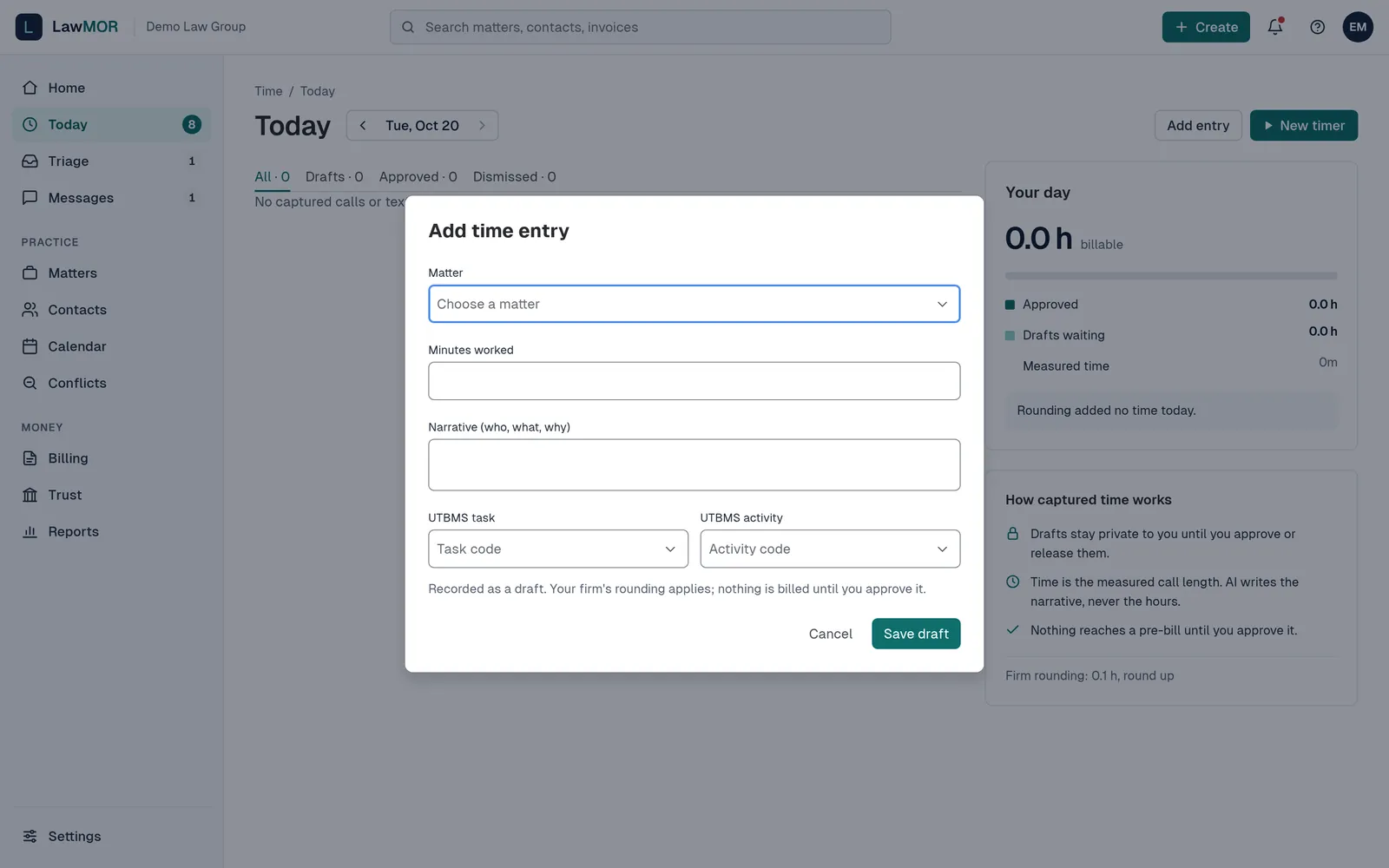
Add time entry. Edit, approve or dismiss
Select Edit on a draft to change the narrative, Billed hours or codes, then Save draft. Billing more than the measured time plus one increment needs a reason, which is audited. Select Approve when it is right. To throw a draft away, select Dismiss draft, give a reason and select Dismiss; Undo brings it back.
Did this not answer your question? Contact support and we will reply within one business day.