Review a pre-bill and create the invoice
Turn approved time into a pre-bill, fix flagged entries, write down or hold lines, and approve it.
Generate a pre-bill
Open Billing and select New pre-bill. Choose the Matter and the From and To dates, then select Generate. Only approved, unbilled time and expenses in the period are included.
Read the totals and findings
The top shows fees, expenses, write-downs with realization, and the invoice total. Yellow messages point out entries that a client may reject, such as block billing, vague narratives, missing UTBMS codes or more than 10 hours in a day.
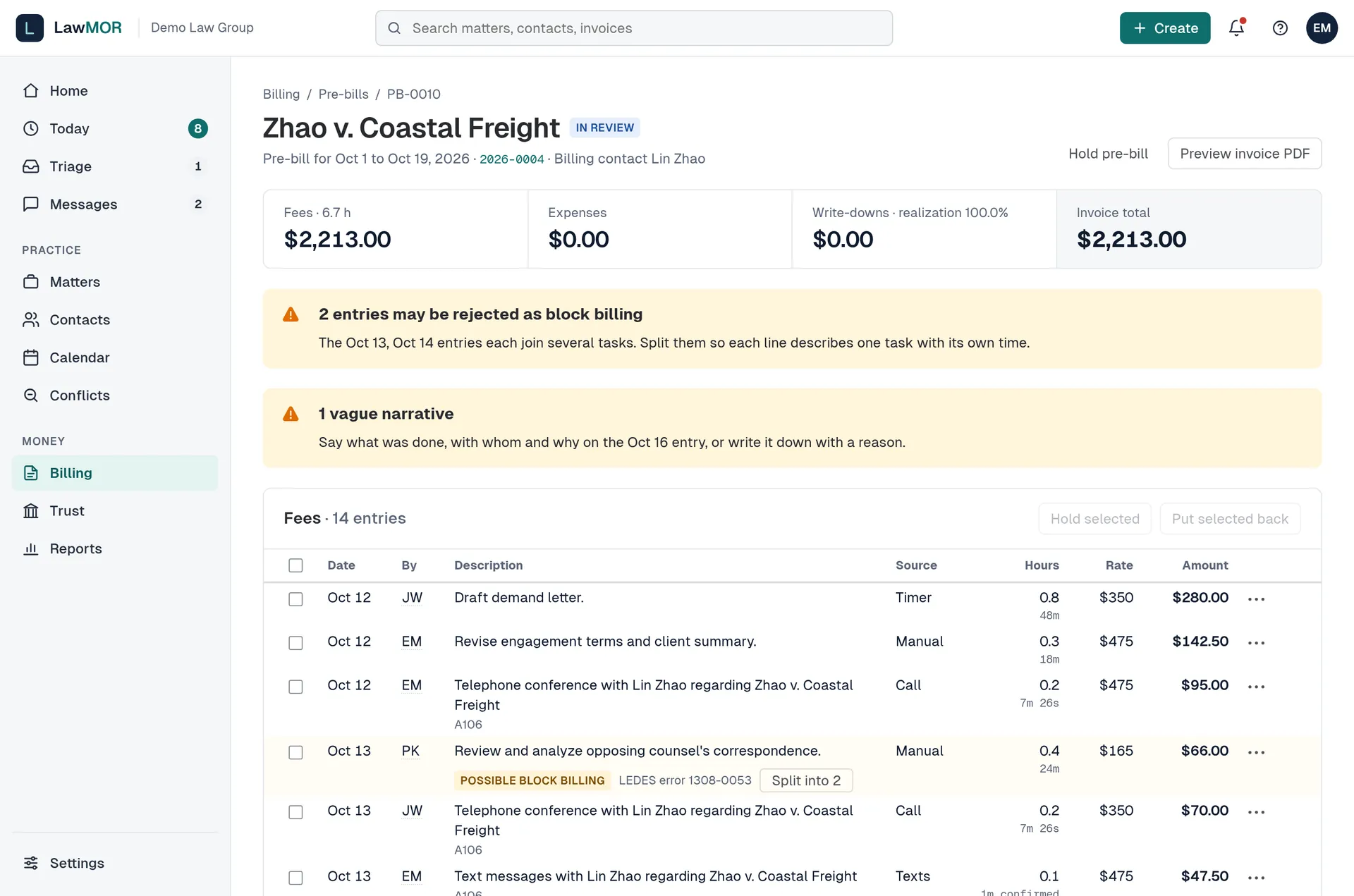
Pre-bill review. Fix lines
Use the three-dot menu on a line to Edit description, Write down or Hold from this invoice. A write-down needs a reason and can only lower hours. On a block billing flag, select Split into 2 and give each task its own hours. To hold several lines, tick them and select Hold selected.
Choose trust and delivery
Under Before you approve, choose whether to apply trust funds when issued and whether to prepare a replenishment request. Under Send invoice by, tick Email with payment link and Text with payment link as needed.
Approve
Select Approve and create invoice. The invoice is created as a draft and opens on its own page. Select Preview invoice PDF first if you want to see it. To pause work on a pre-bill, select Hold pre-bill; Release hold resumes it.
Did this not answer your question? Contact support and we will reply within one business day.