Issue an invoice and record payments
Issue a draft invoice, send it by email or text, record checks and wires, and issue credit notes.
Open the invoice
In Billing, open the Invoices tab and select the invoice number, or Draft for one not yet issued. Select View PDF to see what the client gets.
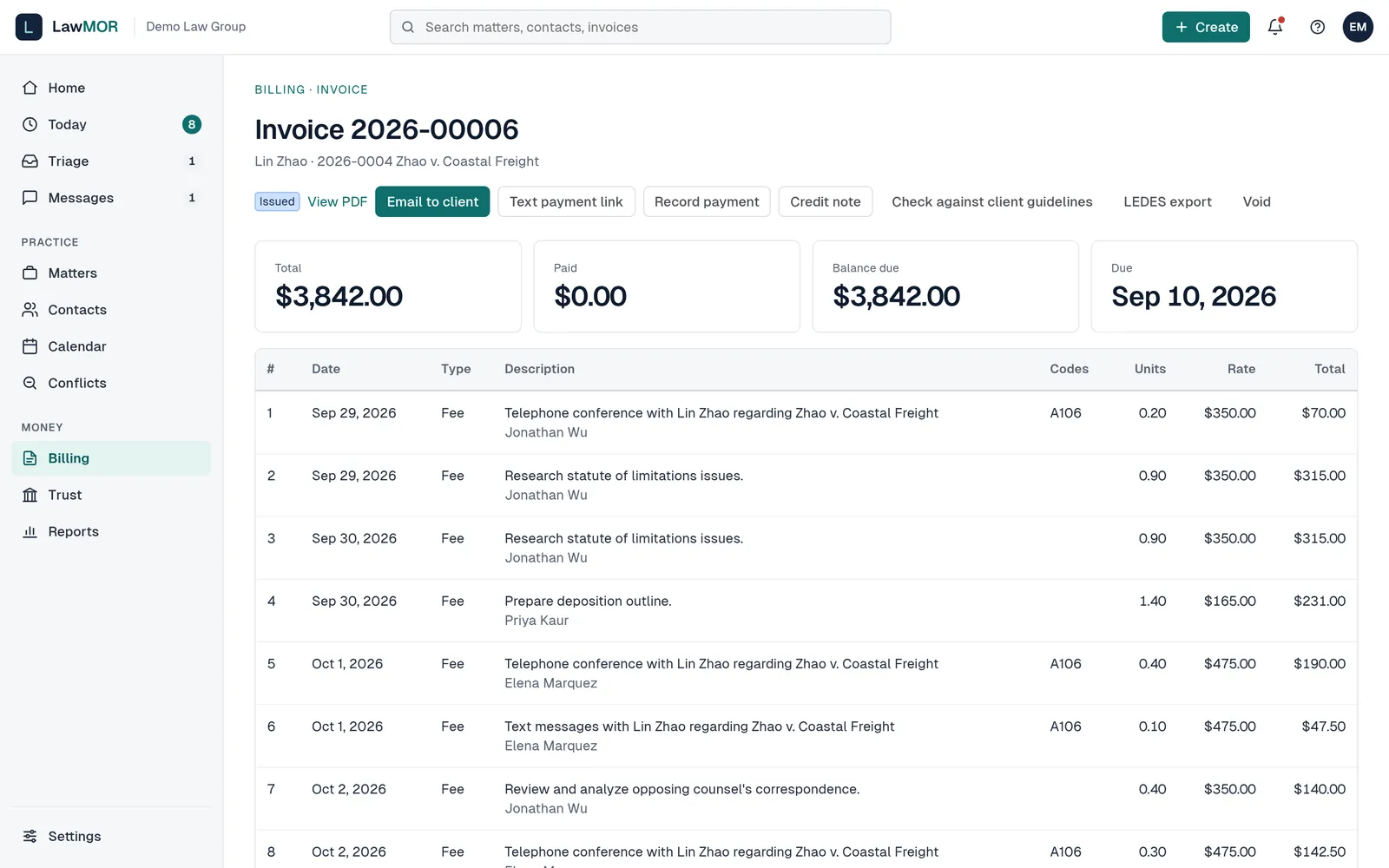
An issued invoice. Issue it
Select Issue invoice. The number is assigned now. If trust funds were chosen on the pre-bill, LawMOR may ask you to confirm your second factor, because issuing moves money from trust.
Send it
Select Email to client (leave the address blank to use the client's billing email) or Text payment link (leave the number blank to use the client's mobile). Online payment through the link needs your firm's online payments to be set up.
Record a payment you received
For a check, ACH or wire paid into the operating account, select Record payment. Enter the Amount, the date Received and the Check / reference, then select Record. You confirm your second factor if you have not in the last 10 minutes. Online payments record themselves.
Correct an invoice
Select Credit note, enter the amount and reason, and select Issue credit. The firm owner can also Void an issued invoice; the work returns to approved time and the number is kept as void. A draft can be removed with Discard draft.
Did this not answer your question? Contact support and we will reply within one business day.