Do the monthly three-way reconciliation
Import the bank statement, compare bank, journal and client ledgers, and sign as the designated licensee.
Prepare the reconciliation
In Trust, open the Reconcile tab. Check the Period start and Period end (last month by default), choose the Bank statement file (CSV or OFX), enter the Opening balance and Closing balance, and select Prepare reconciliation.
Read the three-way panel
The page compares the bank, the trust journal and the client ledgers. It is tagged Balanced when all three agree, or Difference when they do not. Steps across the top show what is done: statement imported, transactions matched, differences reviewed, sign.
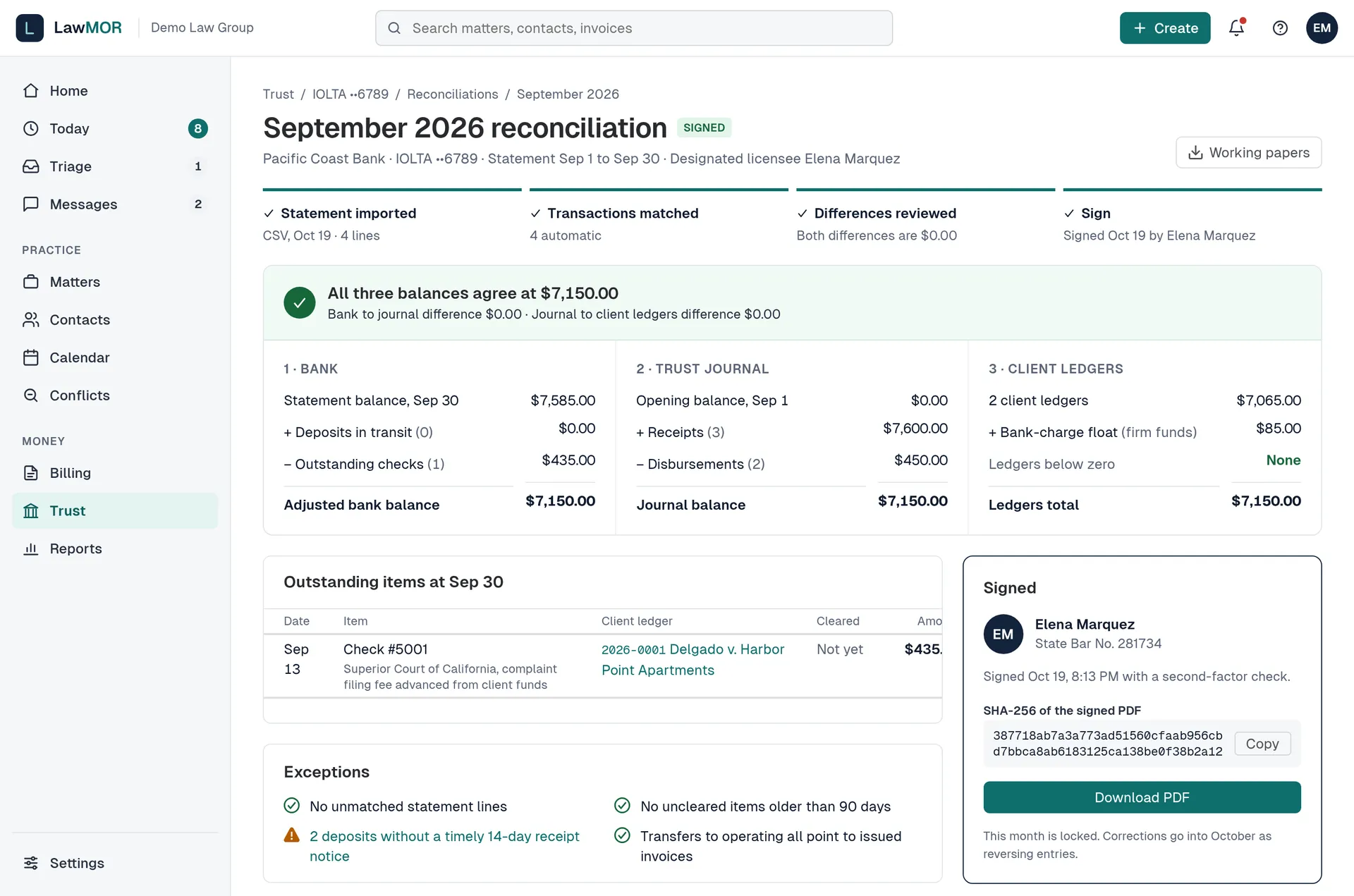
A balanced reconciliation. Clear the exceptions
Check Outstanding items, Unmatched statement lines and Exceptions. Each open exception links to where you fix it. For an unmatched line, record the missing transaction in the journal, then prepare the reconciliation again.
Sign it
The designated licensee ticks the attestation and selects Verify with MFA and sign, then confirms their second factor. Signing saves a locked PDF with a SHA-256 fingerprint. Others see who can sign.
After signing
The month is locked. Corrections go into the next month as reversing entries. Select Download PDF for the signed copy, or Working papers for the supporting schedules.
Did this not answer your question? Contact support and we will reply within one business day.